


How to Access and Submit Your Interview Evaluation
When an application reaches a round that includes a meeting step, you will find the meeting details and action buttons directly inside the Application File. If the same round also includes an evaluation step, you will see both the meeting and evaluation sections in the right-hand panel.
Where to Find the Interview and Evaluation
Open the Application File of the relevant application. In the right-hand panel, expand the relevant round of selection to see the Meeting section and, if applicable, the Evaluations section below it.
Step-by-Step
1. Join the Meeting
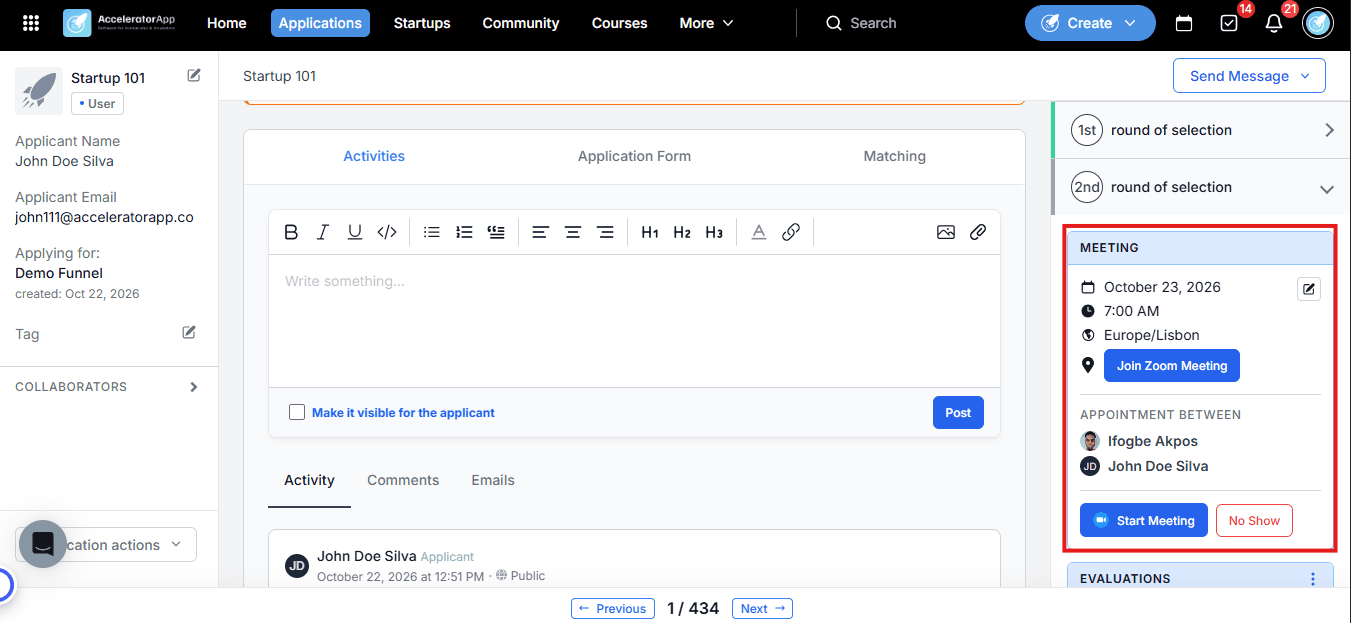
In the Meeting section of the right-hand panel, you will see the scheduled date, time, timezone, and a Join Meeting and Start Meeting button. Click the Join one to open the meeting in your connected video conferencing tool and the Start one to opne the Notes.
If the applicant does not attend, click No Show to record their absence.
2. Record Meeting Notes
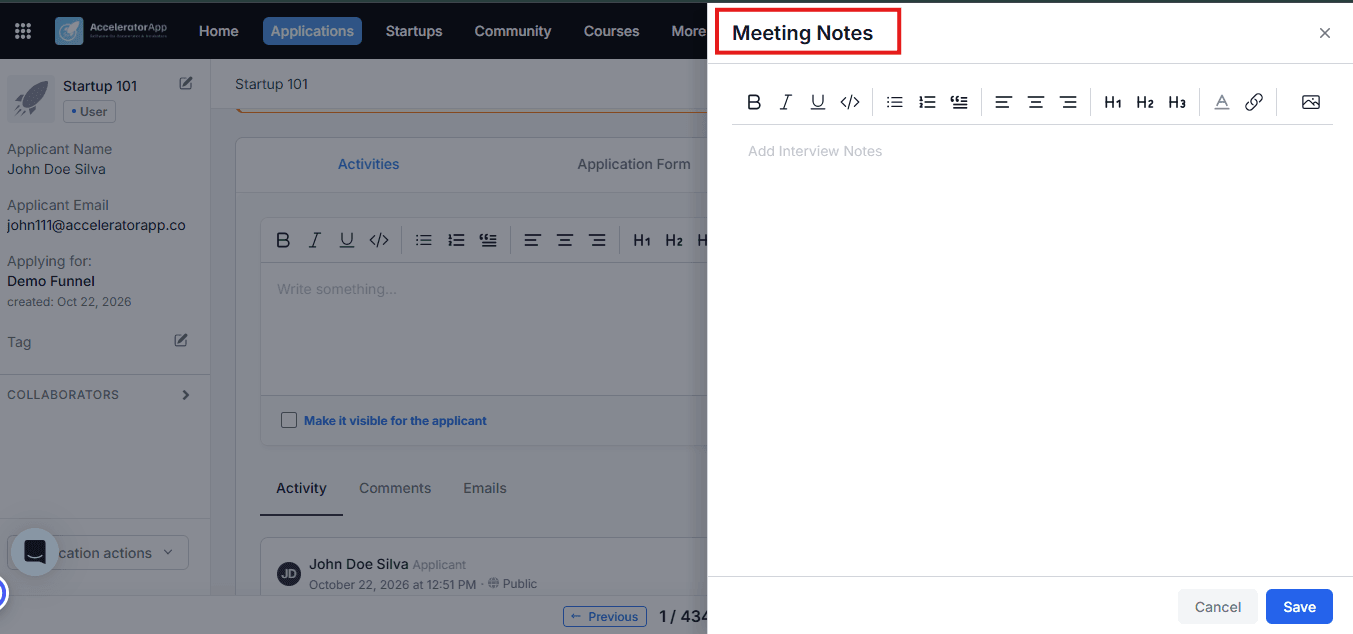
Once inside the Application File, click the Start Meeting button to open the notes panel. A text editor will appear where you can write your interview observations using formatting options such as bold, lists, headings, and links.
Click Save to store your notes.
3. Edit Meeting Notes
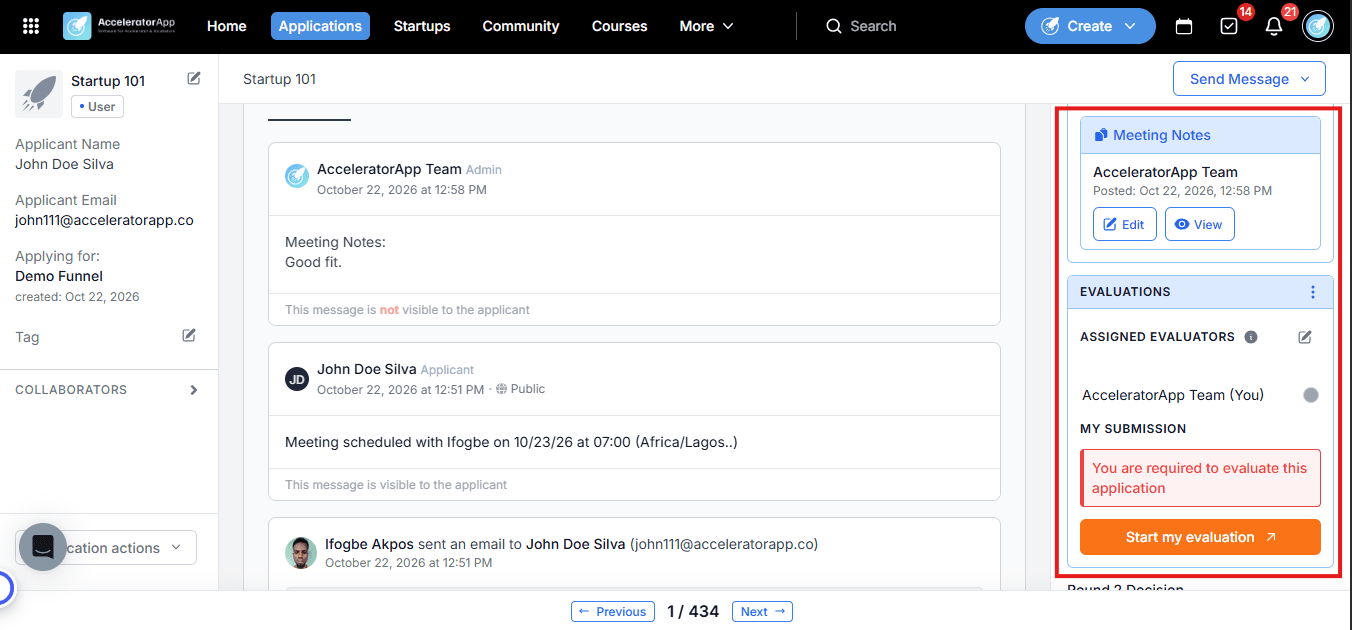
After saving, your notes will appear in the right-hand panel under Meeting Notes, showing who posted them and when. To make changes, click the Edit button next to your notes. Update the content and save again.
4. Submit Your Evaluation
If the current round includes an evaluation step, you will see an Evaluations section in the right-hand panel. If you are assigned as an evaluator, you will see a Start my evaluation button and a prompt: "You are required to evaluate this application."
Click Start my evaluation to open the evaluation form. For full instructions on filling in scores and submitting, see How to Submit an Evaluation.
Best Practices
- Record your meeting notes during the interview. Writing down your observations while the conversation is still fresh leads to more accurate and useful notes. Meeting notes are private by default.
- Complete your evaluation in the same session as the interview. If the round includes both a meeting and an evaluation, submitting your scores right after the interview ensures your impressions are accurately reflected.
- Use No Show promptly. If an applicant does not attend, marking them as No Show keeps the application status accurate for the rest of your review team.